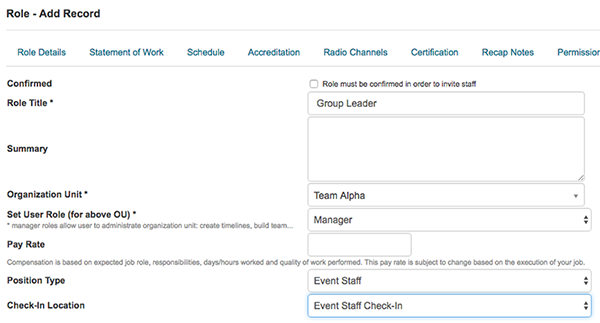
How to create positions/jobs?

  • Select your team on the left and open POSITIONS tab.
  • Click CREATE JOB button
  • Enter all required data (Role Title, Organization Unit...) and click SAVE
  • Repeat above steps for each job

Image title

How to assign, invite and confirm position?

Assign

  • Select your team on the left and open POSITIONS tab.
  • Start to type users name into a text field and select user from dropdown list to assign this job to him/her
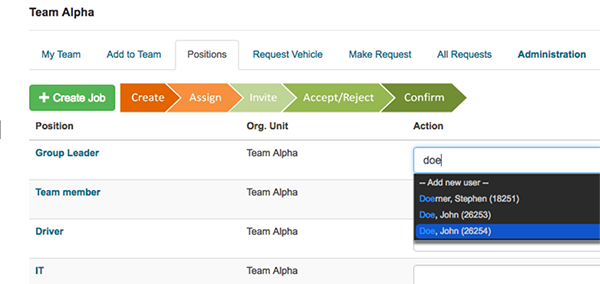
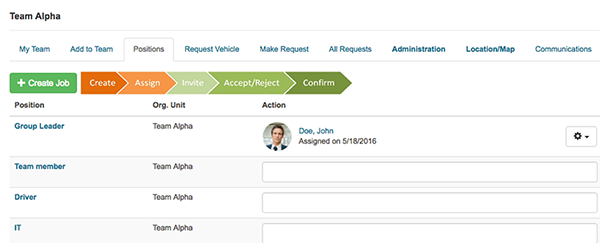
Image title

Image title

Invite

  • Open MY TEAM tab
  • Select user and click Action button at the right from his name
  • From dropdown list select INVITE
  • User's status will change to invited
  • When user confirm invitation his/hers status will change to confirmed
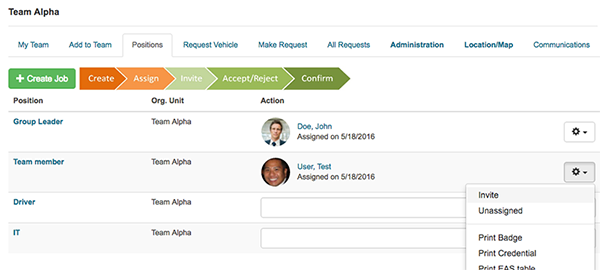
Image title

How to communicate with my team?

  • Select your team on the left and open MY TEAM tab.

Send messages to multiple users

  • Select All, Active or Inactive users from dropdown list, or...
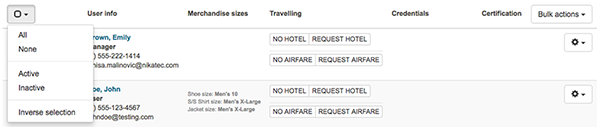
Image title

  • Select each user manually by checking checkboxes next to their names
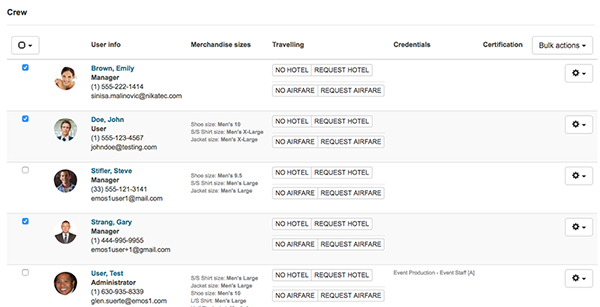
Image title

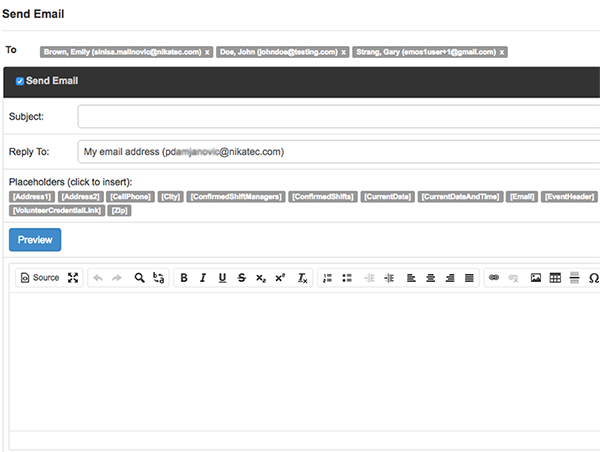
  • Click BULK ACTIONS button, select SEND EMAIL option and email form will open
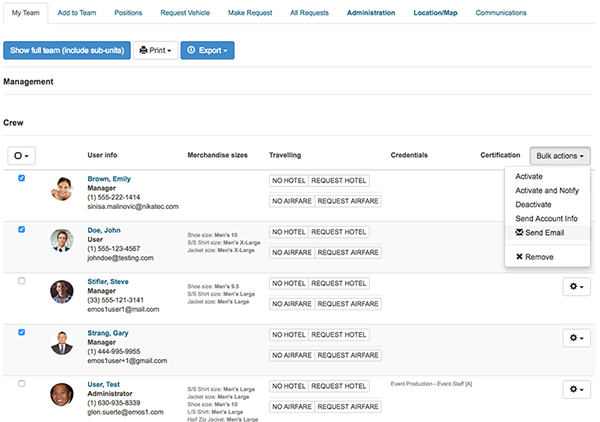
Image title

Image title

Send message to single user

  • Open dropdown list by click button at the right of user's name
  • Select SEND EMAIL or SEND TEXT MESSAGE and selected form will open
EMOS Wiki EMOS Workflow Registration Process Event Setup & Configuration Event Structure Organization System configuration ESR configuration MPTS configuration EMOS1 Staff Volunteers Timeline Inventory Vehicles MPTS Reporting Positions Staffing Grid My Team Check In Event Staff Check In Event Staff List Quality Assurance Hotel & Airfare Uniform Type Radio Channels Email Templates Check-in Locations See something - Say something How to create positions/jobs? Request Equipment for Team Create New Team How to communicate with my team How to create positions/jobs How to assign, invite and confirm position How to request Hotel How to request Airfare How to assign equipment How to check out equipment Check In Item How to check out vehicle How to reserve vehicle MPTS Settings MPTS Overview Check In Event Staff List Assign Item Check Out Item What's New EMOS Mobile Profile Messages Timeline (M) My Team (M) Check In Map See-Say Settings Support Medical License Verification Cross Event Timeline Create New Activity Timeline View Options Event Setup Items Logical Categories Items with serial numbers Items with serial numbers Create Item Privacy Policy Check Out Container Items Logical Categories Assigned list by users Assigned list by items Checked out list by items Requested list by items Items → Containers Packing Wizard packing wizard Administration Set up event Set up communications Organize staff Set up communications Set up inventory Container box content - mobile optimized Items distribution categories bkp Items - Distribution Types EMOS1 Volunteer Check In Setup