Items with sizes
Add New Item
Go to Inventory-Equipment Settings-Items logical categories

Click ADD NEW ITEM button
Enter new Item's data and check TRACK ITEM BY SIZES radio button
Click SAVE button

Select item from list to: Check Details, Edit Item, Enter Quantities...

Edit Item and click SAVE button

Enter Quantity for each size and click SAVE button

Check Out Item
Go to Inventory-Check Out Item

Find user by enter name or barcode
Select item by barcode or S/N or Start typing Item's name

Click on list to expand it

Select size from dropdown list

Click CHECK OUT button

Item is Checked Out
Check In Item
Go to Inventory-Check Out Item

Find item by barcode or S/N or Start typing Item's name

Find User and click CHECK IN button

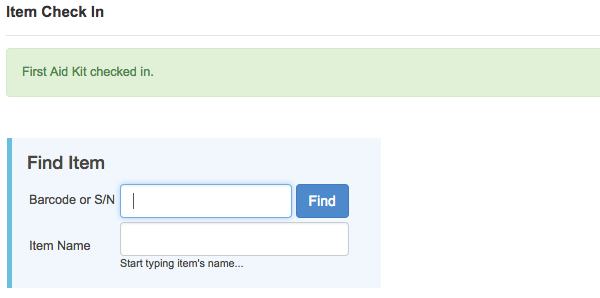
Item is Checked In
Items with Serial Numbers
Add New Item
Go to Inventory-Equipment Settings-Items logical categories
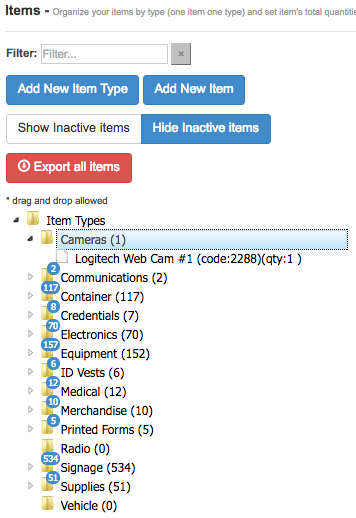
Click ADD NEW ITEM button
Enter new Item's data and check TRACK ITEM BY S/N OR ANY UNIQUE IDENTIFIER radio button
Enter Serial Numbers
Click SAVE button
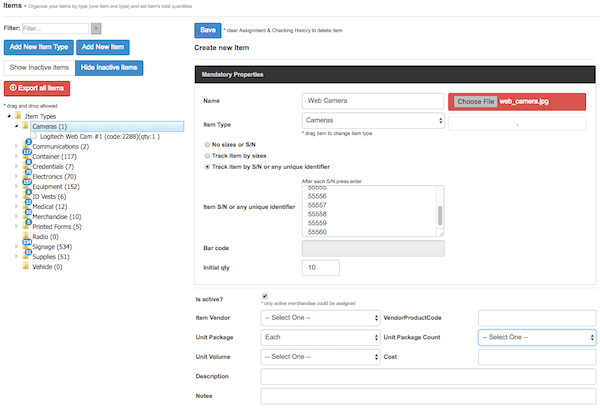
Select item from list to: Check Details, Edit Item, Enter Quantities...
 New Item is created
Check Item Details

Edit Item and click SAVE button

Enter Quantity for each size and click SAVE button

Check Out Item
Go to Inventory-Check Out Item
Find User by enter Name or Barcode
Find Item by enter Barcode or S/N or start typing Item name

Click on blank field to expand serial number list
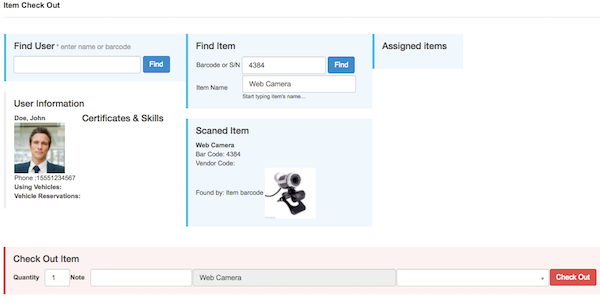
Select serial number from list

Click CHECK OUT button

Item is Checked Out
Check In Item
Go to Inventory-Check In Item
Find Item by enter Barcode or S/N or start typing Item name

Find User on list
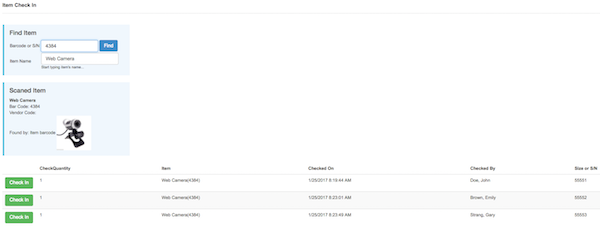
Click CHECK IN button
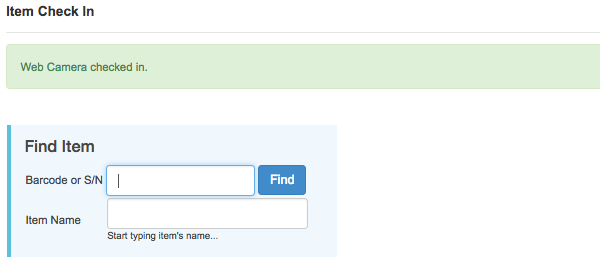
Item is Checked In
Item Sets
Add New Item
Go to Inventory-Equipment Settings-Items logical categories
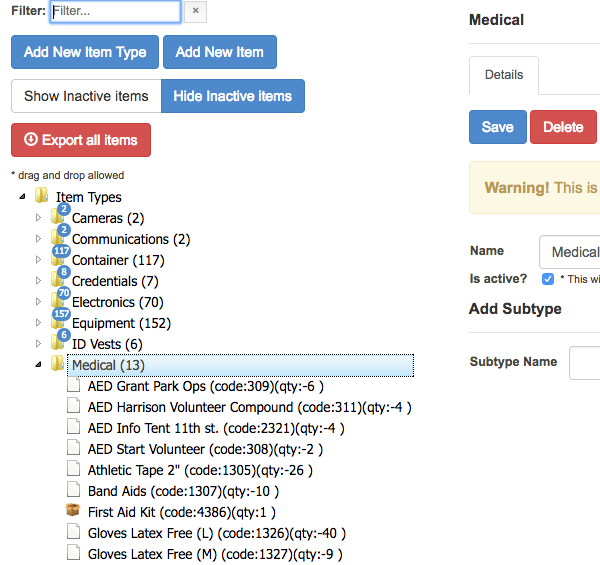
Click ADD NEW ITEM button
Enter new Item's data and check TRACK ITEM AS ITEM SET radio button
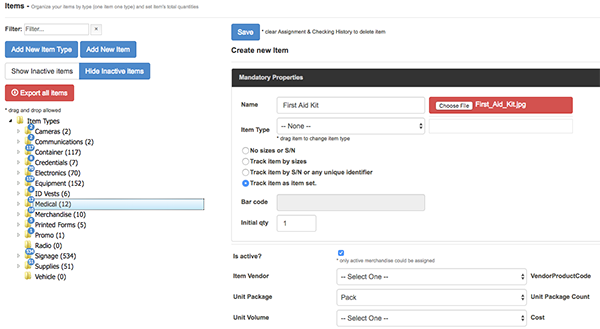
Click SAVE button
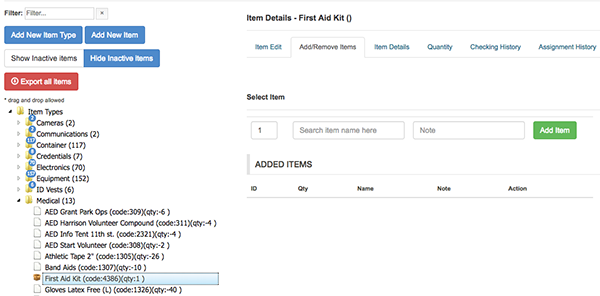 The New Item Set is Created
Add/Remove Items From Set
Select Items Set from list and click on ADD/REMOVE ITEMS button
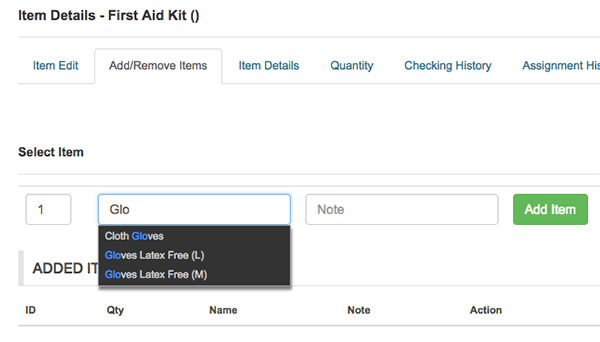
Start to type item's name and select item from dropdown list, enter quantity, optionally add note and click ADD ITEM button.
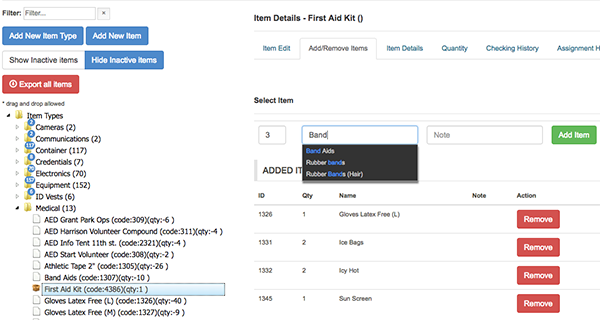 Repeat this step for each Item.
Check Out Item
Go to Inventory-Check Out Item
Find user by enter name or barcode
Select item by barcode or S/N or Start typing Item's name
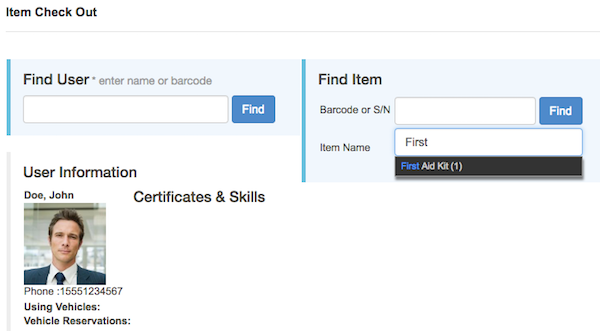
Click the CHECK OUT button.
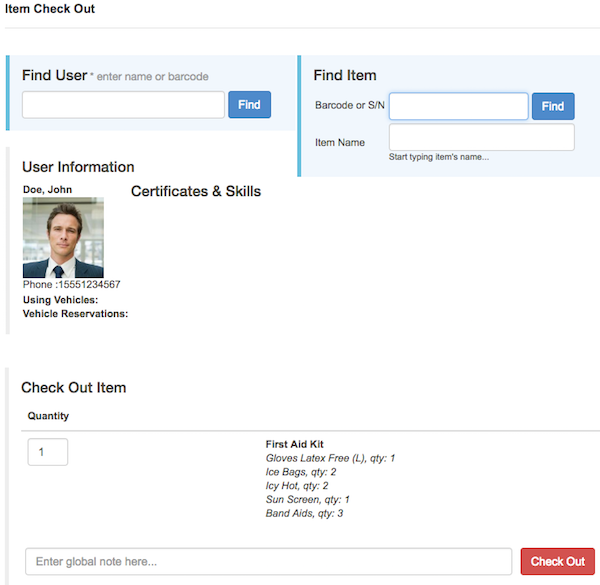
Item is checked out.
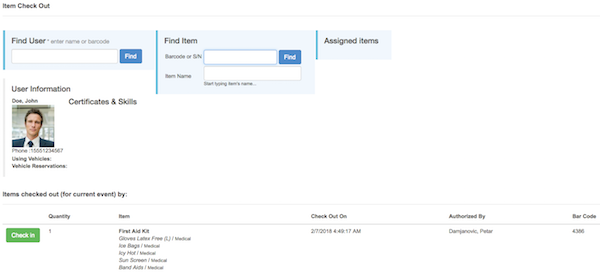
Check In Item
Go to Inventory-Check Out Item
Find item by barcode or S/N or Start typing Item's name
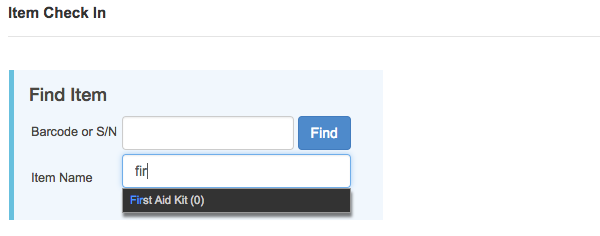
Find User and click CHECK IN button
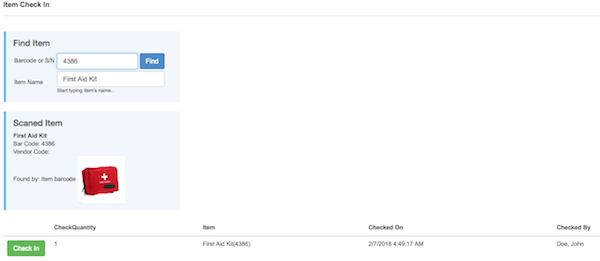
Item is Checked In